Windows system uses
a
page
file
to
store
data
that
can’t
be
held
by
your
computer’s
RAM when
it
fills
up.
While
you
can
tweak
the
page
file
settings,
Windows
can
manage
the
page
file
fine
on
its
own. We can see
it
as
the
cause
of
slowdown
of tasks,
because
it
is slower
to
use
the
page
file
than
your
computer’s
RAM,
but
having
a
page
file
is
better
than
not
having
one.
Fig1: Page Files
How the Page File Works
The
page
file,
also
known
as
the
swap
file,
page
file,
or
paging
file,
is
a
file
on
your
hard
drive.
It’s
located
at
C:\pagefile.sys
by
default,
but
you
won’t
see
it
unless
you
tell
Windows
Explorer
not
to
hide
protected
operating
system
files.
Fig2: Page File
Location
Your
computer
stores
files,
programs,
and
other
data
you’re
using
in
your
RAM
(random
access
memory)
because
it’s
much
faster
to
read
from
RAM
than
to
read
from
a
hard
drive.
For
example,
when
you
open
Firefox,
Firefox’s
program
files
are
read
from
your
hard
drive
and
placed
into
your
RAM.
The
computer
uses
the
copies
in
RAM
rather
than
repeatedly
reading
the
same
files
from
your
hard
drive. Programs store the data they’re working with here. When you view a web page, the web page is downloaded and stored in your RAM. When you watch a YouTube video, the video is held in your RAM.
Fig3: Hard Dive
When
your
RAM
becomes
full,
Windows
moves
some
of
the
data
from
your
RAM
back
to
your
hard
drive,
placing
it
in
the
page
file.
This
file
is
a
form
of
virtual
memory.
While
writing
this
data
to
your
hard
disk
and
reading
it
back
later
is
much
slower
than
using
RAM.
It’s
back-up
memory
– rather
than
throwing
potentially
important
data
away
or
having
programs
crash,
the
data
is
stored
on
your
hard
drive.
Windows
will
try
to
move
data
you
aren’t
using
to
the
page
file.
For
example,
if
you’ve
had
a
program
minimized
for
a
long
time
and
it
isn’t
doing
anything,
its
data
may
be
moved
to
RAM.
If
you
maximize
the
program
later
and
notice
that
it
takes
a
while
to
come
back
instead
of
instantly
snapping
to
life,
it’s
being
swapped
back
in
from
your
page
file.
You’ll
see
your
computer’s
hard
disk
light
blinking
as
this
happens.
With
enough
RAM
in
modern
computers,
the
average
user’s
computer
shouldn’t
normally
use
the
page
file
in
normal
computer
use.
If
you
do
see
your
hard
drive
start
to
grind
away
and
programs
start
to
slow
down
when
you
have
a
large
amount
open,
that’s
an
indication
that
your
computer
is
using
the
page
file
– you
can
speed
things
up
by
adding
more
RAM.
You
can
also
try
freeing
up
memory
— for
example,
by
getting
rid
of
useless
programs
running
in
the
background.
Myth: Disabling the Page File Improves Performance
Some
people
will
tell
you
that
you
should
disable
the
page
file
to
speed
up
your
computer.
The
thinking
goes
like
this:
the
page
file
is
slower
than
RAM,
and
if
you
have
enough
RAM,
Windows
will
use
the
page
file
when
it
should
be
using
RAM,
slowing
down
your
computer.
People
have
tested this theory
and
found
that,
while
Windows
can
run
without
a
page
file
if
you
have
a
large
amount
of
RAM,
there’s
no
performance
benefit
to
disabling
the
page
file.
However,
disabling
the
page
file
can
result
in
some
bad
things.
If
programs
start
to
use
up
all
your
available
memory,
they’ll
start
crashing
instead
of
being
swapped
out
of
the
RAM
into
your
page
file.
This
can
also
cause
problems
when
running
software
that
requires
a
large
amount
of
memory,
such
as
virtual
machines.
Some
programs
may
even
refuse
to
run.
Managing the Page File
Windows
automatically
manages
the
page
file’s
settings
for
you.
However,
if
you
want
to
adjust
your
page
file
settings,
you
can
do
so
from
the
Advanced
System
Settings
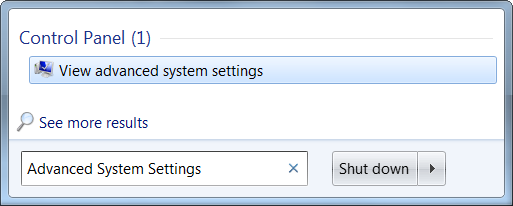
window. Click Start -> type Advanced System Settings into the Start menu -> press Enter to open it.
Fig4: Advanced
Setting Options
 Click the Settings button under performance.
Fig5: System Properties
Click over
to
the
advanced
tab
and
click
the
Change
button
in
the
Virtual
memory
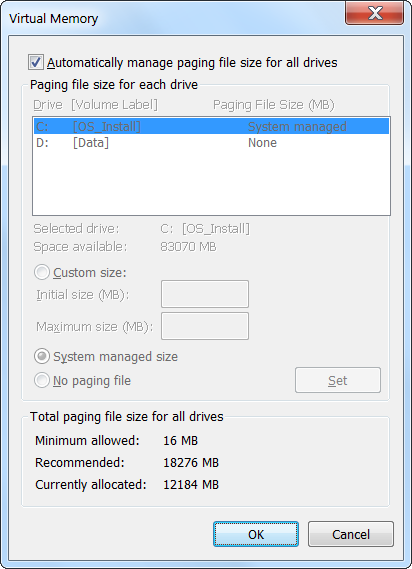
section.
Fig6: Performance Setting
Options
Windows automatically
manages
your
page
file
settings
by
default.
Most
users
should
leave
these
settings
alone
and
allow
Windows
to
make
the
best
decision
for
you.
Fig7: Virtual Memory
Setting Options
However, one tweak that may help in some situations is moving the page file to another drive. If you have two separate hard drives in your computer, assuming one is the system drive with your programs installed on it and one is a less-used data drive, moving the page file to the data drive can potentially offer some increased performance when your page file is in-use. Assuming that Windows will already be using the system drive if it needs to use the page file, this spreads out the hard drive activity instead of concentrating it on one drive.