Hi friends,
today we will see one of the most exciting features of Android operating system
known as context aware services. This feature makes Android device a much smarter
as it knows where exactly it is by using GPS receiver which is in built in Android
device.
Showing posts with label app. Show all posts
Showing posts with label app. Show all posts
Thursday, March 6, 2014


Wednesday, July 24, 2013
YouTube Downloader for Android
Hello,
this time I'll be helping you to download your favourite YouTube
videos to your Android phone. Downloading YouTube videos is one sure
thing that we may be missing on our Android phone. Many times, we may
feel sad that we cannot download a particular video that we are
watching on our Android phone. There are many YouTube downloading
websites available for the PC, but you may not know about YouTube
video downloading app for your own Android, and is also free-of-cost.
Link to app provided below.
This
is actually a modified YouTube app, with features such as:
- Pause/Resume Option
- Download all available qualities
- Simultaneous download of multiple videos
- 4 formats available for download 3GP, FLV, MP4 and also MP3
- Download videos as MP3 directly
- All qualities are PLAYABLE 140p to 1080p HD
- Video plays even after screen turns off
No
worries, now you can view High Quality videos on your Android phone,
and also download your favourite videos for watching them later on
your phone. This app can be installed on your Android phone as you
normally install an app.
Step-by-Step
how to download YouTube videos from this app is as shown below:
- Download OGYouTube Downloader from the following site:

- Install the downloaded apk file on your Android device.


- There will be a shortcut for the app on your Android home screen. Click on it, to start the app.
- Select a video you want to download.


- There will be a download link at the video's page, click on it. The app will scan for available formats for the video. Click on the link again, it'll show you a list of available formats to download.
- Select the video format you wish to download, and observe the status bar, you'll see the video being downloaded.

- Congratulations... You've just downloaded a YouTube video.


Friday, January 11, 2013
APPLOCKER POLICY
What is AppLocker ?
Windows 7 AppLocker is one of Windows 7 tool improving security of Windows users. Using Windows 7 AppLocker feature, Windows users can specify the software that are allowed to run or disallowed to run on a Windows user's PC. Windows administrators can also control AppLocker features and manage applications using flexible Group Policies. So friends,If you have Microsoft Windows 7 Ultimate edition or Windows 7 Enterprise edition installed on your computer then you have Windows 7 AppLocker tool ready for use. Windows AppLocker enables Windows users to control the execution of specific software applications and programs under certain Windows user privileges. Especially for parents, Windows 7 AppLocker is a very handy tool to prevent selected programs to be run by children. For example, parents can disallow a PC game rated as including violence for their children to play.
Rules for creation of the Applocker :
Windows 7 users can start Win7 AppLocker following the below selections :-
Control Panel > System and Security > Administrative Tools.

Fig1. Local Security Policy Window
Double
click on Local Security Policy among Administrative tools.Windows
7 users can see the AppLocker node under the Application Control
Policies node.

Fig2.Application
Control Policies node
Click on Executable
Rules node.If you have not yet created any rule for a software
application, this section will be empty.
If you wish to create rule try this :
Right click on the Executable Rules node or right click on the empty space on the right pane.

Fig3. Context Menu
Proceed
to following step in Windows 7 AppLocker wizard with Next button.

Fig4.Wizard Screen
In this screen administrators can define if the AppLocker rule will be an Allow action or a Deny action. Also Windows administrators will also identify the Windows users or User groups to be affected by this rule.

Fig5.Permission Screen
Continue
with
Next
for
following
Windows
7
AppLocker
screen
where
admins
will
define
the
Conditions
for
the
AppLocker
rule.
As
seen
in
the
below
screen-shot,
Windows
7
AppLocker
rules
can
be
set
according
to
path
of
the
executable
information.

Fig6. Condition Screen
In the
Publisher definition screen, choose an executable application file
for reference. Click on the Browse button to start identifying the
publisher properties to define a Windows 7 Applocker rule over.
In
order to create a sample AppLocker rule that can be used by parents
as a windows7 parental control. Browse the software application that
you want to disallow. The publisher and the product details will be
listed as follows:-
- You can cover a wider range of products of the related publisher by moving the slider upwards. If you move the slider downwards a more detailed filter will be applied. When slider is up a more common filter criteria will be applied for the Win7 AppLocker rule.
Fig7.Reference File Window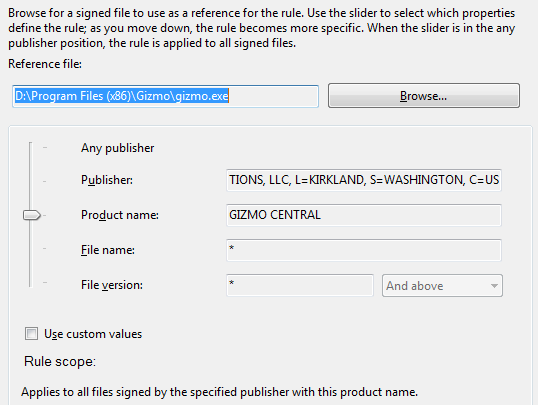
- The next screen Exceptions in the AppLocker wizard will let Windows administrator to define exceptions to the above filter criteria.
- The last screen
in the Applocker wizard enables users to name the Win 7 AppLocker
rule and supply a description of the rule for further reference.
Click the Create button to proceed with the Windows 7 AppLocker rule creation task.

Fig.8 Final Display Description Screen
After the rule is created, this rule will be listed in the Executable Rules list as a new item.This is how the App-Locker feature works.
Subscribe to:
Posts (Atom)