Showing posts with label mobile app. Show all posts

Monday, March 3, 2014

Android Power saver apps Vs. Inbuilt Power Saver

Hello Smart phone users,
The first and most basic problem to any smart phone user, android users specifically is about the battery and performance. While selecting the phone, most of us don’t consider the battery standby and performance, which is an important factor and not bound to deny. When this comes into your consideration, it’s too late, and you go browsing PlayStore for battery saving applications. I know presently many of you do have such app right now in your phone.
Let me tell you one thing, these apps don’t work; at an extent that you think. I have conducted few tests with my own device. I have downloaded those apps which are well known and recommended. In my Phone, I’ve used these apps- ‘Du-Battery saver’, ’Go Battery Saver’, ’Easy Battery Saver’, ‘Battery Doctor’. The link for news site; http://www.ibtimes.co.in/articles/531818/20131226/top-5-extend-battery-life-android-devices.htm

Here’s the screenshot from my device. The Battery doctor app showed its functionality defect in this image. Moment I finished installation, It created one shortcut, which is normal, but the moment I started the app, it gave notification that ‘shortcut icon created on home screen’.


LET’S BEGIN WITH TEST:
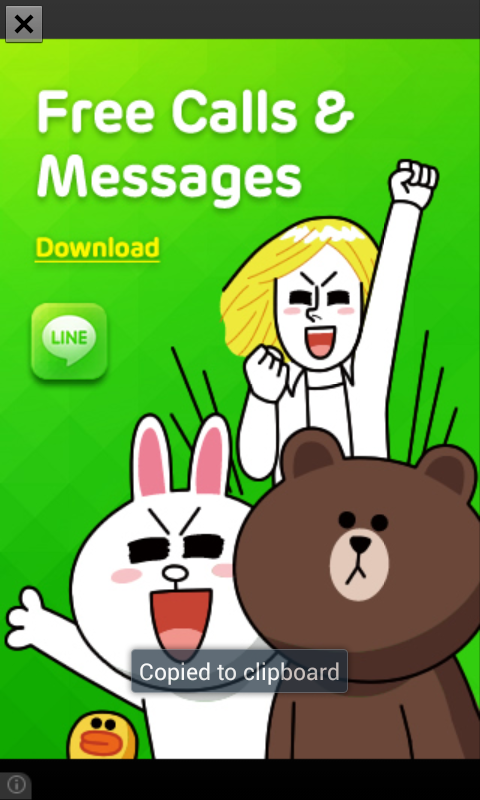
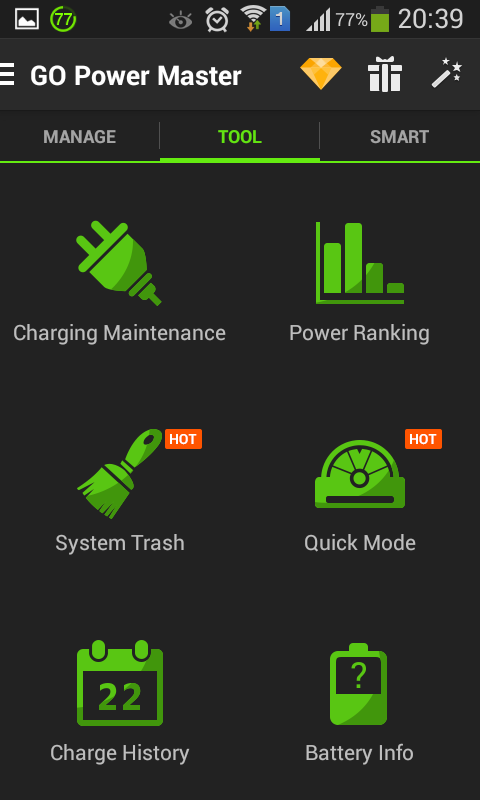
    1.    Go Battery saver: Initially when every such app start they show battery status and consumption level, this showed the same. It has profiles depending upon how user wants the performance. The default mode was “MY MODE” which is your current settings with respect to Brightness level, background apps, and widgets. In setting you will find TOOLS section, There’s a hot badge option TRASH, which kills your task running in background this can consume your battery not by killing application, but those applications are meant to run in background, those apps will restart and again will be killed by battery saver, this goes in cycle and hence draining battery. The interface is good, but doesn’t satisfy the need, pops out an Advertise every time you exit. Do not click on such Ads. They may contain malicious application for instance you can see in image 4.


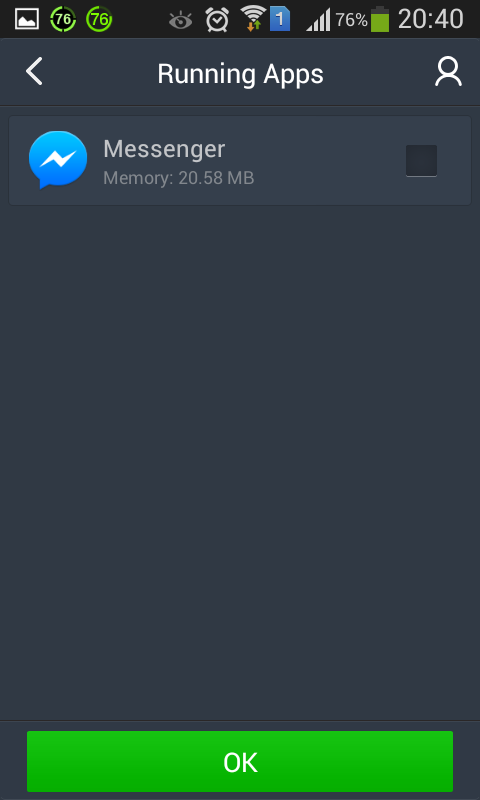
2.    Battery Doctor: This app had no surprise element, I could see the same modules, same profiles the only thing I caught; was the app consumption chart, It showed the criteria for “High battery consuming apps”, this result included the battery saving application Go battery saver also named as “Go Power Master”. You can see that in image 5. After clearing that, only FB messenger was continued. Checking out the profiles, you will find the profile, deduces the overall screen dim as if your phone is SICK! No advertise pop outs but no such saving either. Hence, doesn’t satisfy the need.


 3.    Du Battery saver:  This battery saver is quite famous and is found with most of the users. There exists a premium version too, but the free version itself didn’t impress, so there’s no question on spending a penny over it. So far better UI than others. Gives a Monitor to have a watch over the apps as well as hardware, but once again it gave a chance to pick a fault. It showed the “Battery doctor” app consuming 1.6% of juice. Where earlier in “Go Power Master” the consumption of “Battery Doctor” was 0.43% you can refer the following screenshots. There may be rise obviously, but this not the all, the hardware section showed the consumption of Radio. It was ON according to the app., but actually it was OFF, since it needs the headset to work as antenna. Conclusion, dissatisfaction.


4.    Easy battery saver: This battery saver is total waste of data rates. The interface not so good. Same modules and less number of profiles. Another irritating thing, you cannot exit this app, you have minimize it compulsorily or see “About us” section or see “Top Apps” section. I would strongly recommend, do not install this app!


Task killers:
As I mentioned earlier, the Cycle of killing and evoking of background apps drains a lot of battery, “Du battery saver” and “Batter Doctor” come with Task killer widgets. In Image 13 if you observe after I optimized it, It shows that battery lives 8min longer and in Image 14 It kills same number of apps, in matter of time but notifies 56mins saved, which not at all a practical thing to be believed!


What Practically happens in your phone?

The image below here is self explanatory. You must be wondering if you can see this in your phone; well every Smartphone user can. The foll. image show the actual RAM usage of these so called Battery saving apps.Also all the junk you get for free in your Gallery can't be ignored.have a look.


What could have worked for your battery saving?
I would say there are two options for saving battery

A)   Either you get an app, which is smart enough to close or power off those apps and features which are not required, like Wi-Fi, Bluetooth, GPS and so on. There are some apps which do perform this, one of them is Battery Defender, but it can turn off Wi-Fi only, it has no control over others.

B)   Or you can turn off features by your own like, turning off haptic feedback, Brightness level, Wi-Fi  switch, mobile data whenever not needed. Some handsets come with feature of “Power Saving”. That can be the best option in my opinion.

THANK YOU… Any more help regarding Battery optimization and Phone performance you need, you may comment below.

Thursday, June 20, 2013

Ubuntu One: Best option for Cloud storage


Ubuntu One is a cloud service operated by Canonical Ltd. The service enables users to store files online and sync them between computers and mobile devices as well as stream audio and music from cloud to mobile devices.
 Fig1: Ubuntu one Window
Ubuntu One has a client application that runs on Ubuntu 9.04 and later on Windows XP or newer and Mac OS X 10.6 and higher. Other Linux distributions are supported through a console client. The source code is available through launch pad and can easily be compiled for other Unix-like operating systems such as FreeBSD. There is an Ubuntu One music app for iOS device. A free Ubuntu One account offers 5 GB of storage. The Ubuntu One service is similar to services such as iCloud, Dropbox, Google Play Music, Amazon Cloud Player. Its client code is written in Python. It uses Twisted for its low-level networking and Protocol Buffers for protocol description. Data is synced over a custom protocol called "u1storage", and stored on Amazon S3. It also has capabilities for purchasing DRM-free music while synchronizing them automatically with an Ubuntu One Account via the Ubuntu One Music Store (in partnership with 7digital). Ubuntu One publishes APIs for developers wishing to build applications with file and data synchronization or music streaming. While Ubuntu One might seem like an Ubuntu-only file synchronization service, it’s more than that – you can use Ubuntu One on Windows, Android, iOS, and from the web. Ubuntu One offers 5GB of free storage space to everyone. Following are few of those features which you might be unaware of. Lets discuss each in brief.

1) Sync Any Folder:

By default, Ubuntu only synchronizes files inside the Ubuntu One folder in your home directory. However, you can right-click any folder, point to the Ubuntu One menu and select Synchronize This Folder to start synchronizing it. You can manage your synchronized folders from the Ubuntu One application.

Fig2:  Home Screen in Ubuntu

2) Limit Bandwidth:

Ubuntu One uses all available bandwidth for file uploads and downloads by default, but you can restrict its upload and download speeds if you’re on a slower connection. The bandwidth settings are located on the Settings pane in the Ubuntu One window.
 Fig3: Ubuntu one Dialog Window

3) Use Ubuntu One on Windows:

Ubuntu One doesn’t just run on Linux – Ubuntu, it also offers a Windows client with full file synchronization support. Ubuntu One is a cross-platform file synchronization service – you can even use it if you’re a Windows user that has never used Ubuntu.
 Fig4: Ubuntu one License Agreement Window

4) Share Files:

Using the right-click menu in your file manager or the Ubuntu One website, you can share files and folders – publicly on the Internet or privately with other Ubuntu One users. We have covered using Ubuntu One to share files in the past.
 Fig5: Ubuntu one .com Website

 5) Synchronize Installed Software: 

Ubuntu One can sync the software you’ve installed from Ubuntu Software Centre between your computers, so it’s easy to keep track of which software you have installed. We’ve covered syncing software with the Ubuntu Software Centre in the past.
 Fig6: Ubuntu one Software Centre

6) Use Mobile Apps:


Ubuntu One offers apps for Android, iPhone, iPad, and iPod Touch. With the app, you can access your Ubuntu One files on the go from your mobile device.
 Fig7: Ubuntu one Mobile Apps
  
7) Automatically Upload Photos from Your Smartphone:
The mobile app also has the ability to automatically upload photos you take on your Smartphone to your personal Ubuntu One cloud, allowing easy access to your photos on all your devices.

8) Mobile Music Streaming:


Ubuntu One also offers an Ubuntu One Music app for Android and iOS. The app allows you to stream your music to your mobile device from wherever you are – you can also cache files on your device for offline listening. This feature costs $3.99 a month and includes 20GB of storage space – you can try it free for the first 30 days. It also works in concert with the Ubuntu One Music Store included with Ubuntu One’s Rhythm box music player – any music you purchase is instantly delivered to your Ubuntu One account and available in the Ubuntu One Music app.
 Fig8: Ubuntu one Music App

9) Sync Contacts:

Ubuntu One can synchronize your contacts and store them online. Currently, you can import contacts from Facebook on the Ubuntu One website or add them manually. Previous versions of Ubuntu supported contacts sync with the Evolution email client, but contact sync with Thunderbird appears to be absent in Ubuntu 12.10. 
 Fig9: Ubuntu one  Contacts Window

10) Manage Files in Your Browser:

If you don’t have Ubuntu One installed on your computer, you can access and manage your files from the Ubuntu One website. From your browser, you can download files, upload files, or manage your existing files.
 Fig10: Ubuntu one File Transfer Window
 

11) Manage Devices:

From the Devices tab in the Ubuntu One window or the Devices page on the Ubuntu One website, you can manage the computers and other devices that are linked to your account.
 Fig11: Ubuntu one User Account Window

Thus these were few of those features which Ubuntu one provides.