Hello readers, it is found
that using workspace is more secure than hiding the applications in the task
bar. Workspace is a screen where you can run your any application. It can be
used to categorize the work you are doing. Workspaces are more common in any
Linux Distribution. It was first discovered by the Ubuntu default environment
i.e. Unity. Then it was introduced into Gnome environment and then into Linux
Mint (Cinnamon environment). It is very easy to use and configure the
workspace. These are the following steps to configure the workspace:
1 1. To
check the workspace settings go to the System settings window and select the
Advance settings where you can see the “Hot Corner” option as shown in figure:-
Fig
1: System Settings
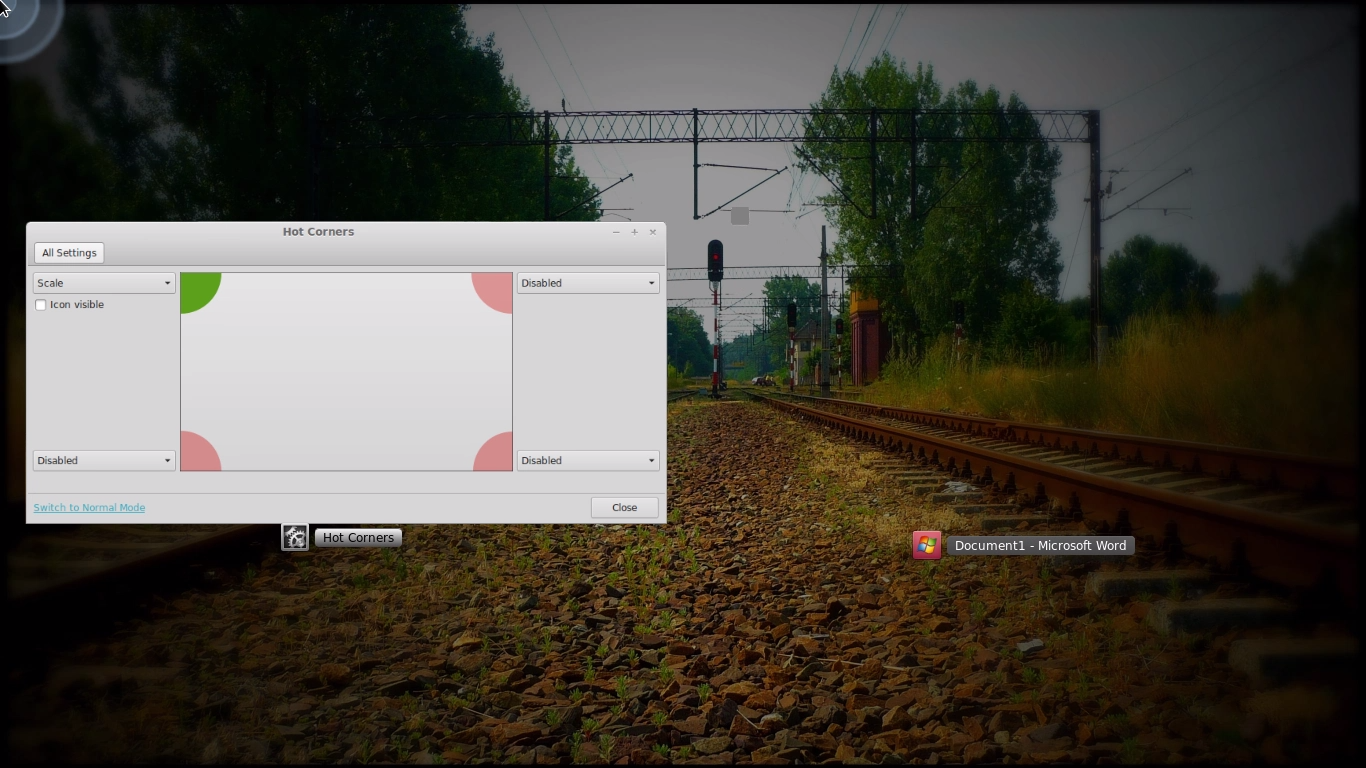
1 2. When
you open the settings of the Hot Corners you will see the window as shown below,
where you can see four corners of the screen and you can select which corner
you want to use for accessing the workspace, where you can see multiple
options.
Fig 2: Hot Corners
3.If
you use the above settings you will be able access multiple workspaces as shown
below, you can also give names to the workspaces that are being used.
Fig
3: Naming Workspace
1 4.Now
if you want to see the applications that are on the same window, you will have
to select the option of “Scale” which helps you in accessing the application of
current window.
Fig
4: Scaling Option
1 5. Due
to the above changes we can see that we are accessing the current window.
Fig
5: Scaling Effect
1 6. For
accessing the workspace using keyboard use the command:-
Alt
+ Ctrl + Arrow Keys (Left/Right)
You will also see the name of the workspace that you are
switching.
Fig
6: Switching Of Workspace