Hello
Smart phone users,
The first and most basic problem to
any smart phone user, android users specifically is about the battery and
performance. While selecting the phone, most of us don’t consider the battery
standby and performance, which is an important factor and not bound to deny.
When this comes into your consideration, it’s too late, and you go browsing
PlayStore for battery saving applications. I know presently many of you do have
such app right now in your phone.
Let me tell you one thing, these apps
don’t work; at an extent that you think. I have conducted few tests with my own
device. I have downloaded those apps which are well known and recommended. In
my Phone, I’ve used these apps- ‘Du-Battery saver’, ’Go Battery Saver’, ’Easy
Battery Saver’, ‘Battery Doctor’. The link for news site; http://www.ibtimes.co.in/articles/531818/20131226/top-5-extend-battery-life-android-devices.htm

Here’s the screenshot from my
device. The Battery doctor app showed its functionality defect in this image.
Moment I finished installation, It created one shortcut, which is normal, but
the moment I started the app, it gave notification that ‘shortcut icon created
on home screen’.
LET’S BEGIN WITH TEST:
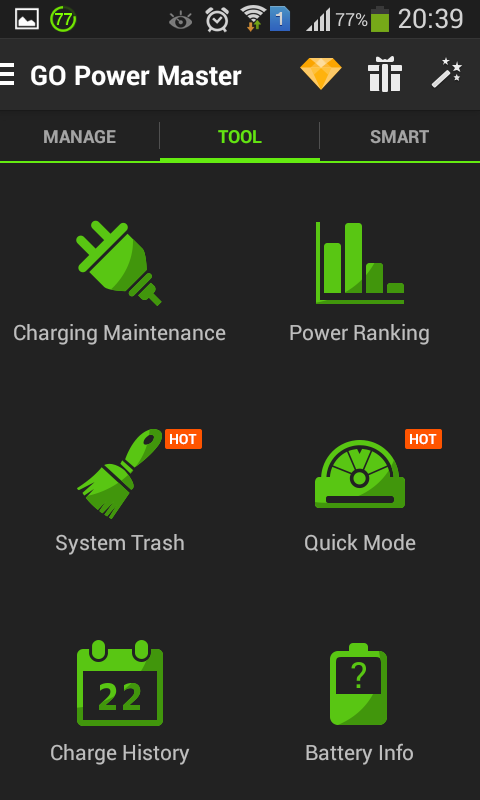
1. Go Battery saver: Initially when every such app
start they show battery status and consumption level, this showed the same. It
has profiles depending upon how user wants the performance. The default mode
was “MY MODE” which is your current settings with respect to Brightness level,
background apps, and widgets. In setting you will find TOOLS section, There’s a
hot badge option TRASH, which kills your task
running in background this can consume your battery not by killing
application, but those applications are meant to run in background, those apps
will restart and again will be killed by battery saver, this goes in cycle and
hence draining battery. The interface
is good, but doesn’t satisfy the need, pops out an Advertise every time you
exit. Do not click on such Ads. They may contain malicious application for
instance you can see in image 4.


2. Battery Doctor: This app had no surprise
element, I could see the same modules, same profiles the only thing I caught;
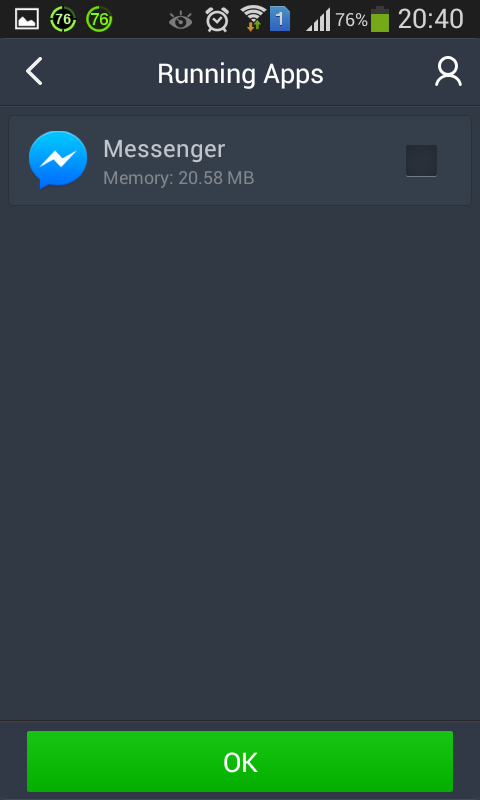
was the app consumption chart, It showed the criteria for “High battery consuming apps”, this result included the battery
saving application Go battery saver also named as “Go Power Master”. You can
see that in image 5. After clearing that, only FB messenger was continued.
Checking out the profiles, you will find the profile, deduces the overall
screen dim as if your phone is SICK! No advertise pop outs but no such saving
either. Hence, doesn’t satisfy the need.

3. Du Battery saver: This battery saver is quite famous and is
found with most of the users. There exists a premium version too, but the free
version itself didn’t impress, so there’s no question on spending a penny over
it. So far better UI than others. Gives a Monitor to have a watch over the apps
as well as hardware, but once again it gave a chance to pick a fault. It showed
the “Battery doctor” app consuming
1.6% of juice. Where earlier in “Go Power
Master” the consumption of “Battery
Doctor” was 0.43% you can refer the following screenshots. There may be
rise obviously, but this not the all, the hardware section showed the
consumption of Radio. It was ON according to the app., but actually it was OFF,
since it needs the headset to work as antenna. Conclusion, dissatisfaction.


4. Easy battery saver: This battery saver is total
waste of data rates. The interface not so good. Same modules and less number of
profiles. Another irritating thing, you cannot exit this app, you have minimize
it compulsorily or see “About us”
section or see “Top Apps” section. I
would strongly recommend, do not install
this app!


Task killers:
As I mentioned earlier, the
Cycle of killing and evoking of background apps drains a lot of battery, “Du battery saver” and “Batter Doctor” come with Task killer widgets. In Image 13 if you
observe after I optimized it, It
shows that battery lives 8min longer and in Image 14 It kills same number of
apps, in matter of time but notifies 56mins saved, which not at all a practical
thing to be believed!


What Practically happens in your phone?
The image below here is self explanatory. You must be wondering if you can see this in your phone; well every Smartphone user can. The foll. image show the actual RAM usage of these so called Battery saving apps.Also all the junk you get for free in your Gallery can't be ignored.have a look.


What could have worked for your
battery saving?
I
would say there are two options for saving battery
A)
Either you get an
app, which is smart enough to close or power off those apps and features which
are not required, like Wi-Fi, Bluetooth, GPS and so on. There are some apps
which do perform this, one of them is Battery
Defender, but it can turn off Wi-Fi only, it has no control over others.
B)
Or you can turn off
features by your own like, turning off haptic feedback, Brightness level,
Wi-Fi switch, mobile data whenever not
needed. Some handsets come with feature of “Power Saving”. That can be the best
option in my opinion.
THANK YOU… Any more help regarding Battery
optimization and Phone performance you need, you may comment below.


